要在windows 使用wsl 模擬正式linux環境,通常會需要用到獨立網域,以及替網址加上ssl,這樣才能模擬一個正式的站。
首先進入到
C:\Windows\System32\drivers\etc
找到hosts 檔案,將它複製出來(因為沒法直接改這個檔案)
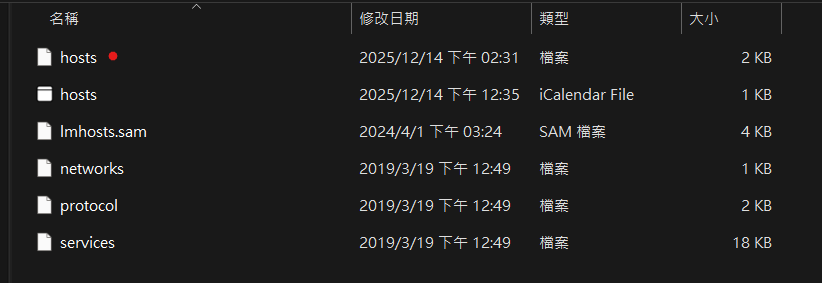
編輯這個複製出來的檔案,加上你要的網址。
例如:
127.0.0.1 hello-aidec.com
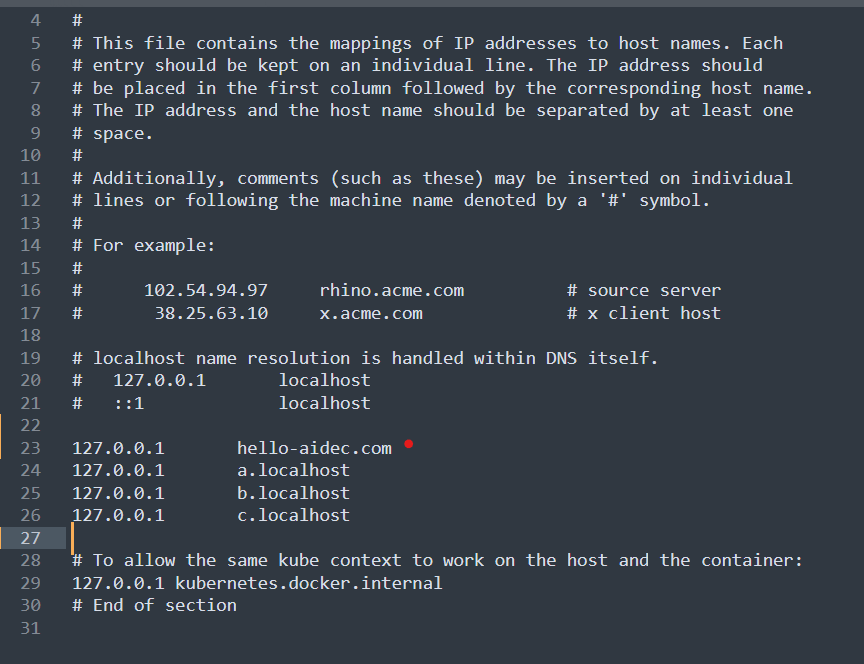
保存檔案,然後複製回去,將原本的hosts蓋掉,會詢問權限,點繼續就可以了。
C:\Windows\System32\drivers\etc
接下來就能在本機使用 hello-aidec.com ,在套上nginx就能對應到你的網站。
但目前這樣僅能使用http://hello-aidec.com ,還沒辦法使用 https://hello-aidec.com
因此需要借助mkcert這個工具來產生憑證。
首先在wsl 的 rocky linux內

安裝 mkcert
sudo curl -JLO "https://dl.filippo.io/mkcert/latest?for=linux/amd64"
sudo chmod +x mkcert-v*-linux-amd64
mkcert -install
安裝成功會出現
Created a new local CA ????
The local CA is now installed in the system trust store! ⚡️
The local CA is now installed in the Firefox and/or Chrome/Chromium trust store (requires browser restart)! ????

然後找到憑證
mkcert -CAROOT
會出現類似
/home/aidec/.local/share/mkcert
可以直接到檔案總管
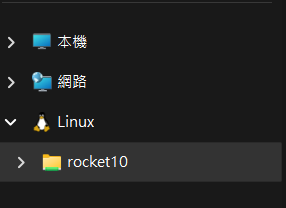
找到 rootCA.pem
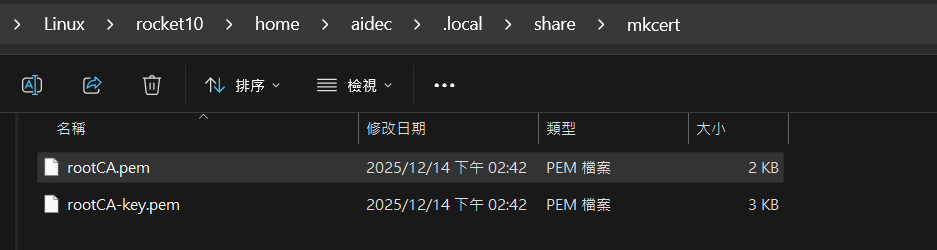
接著需要匯入憑證讓windows信任它
Win + R,輸入certlm.msc
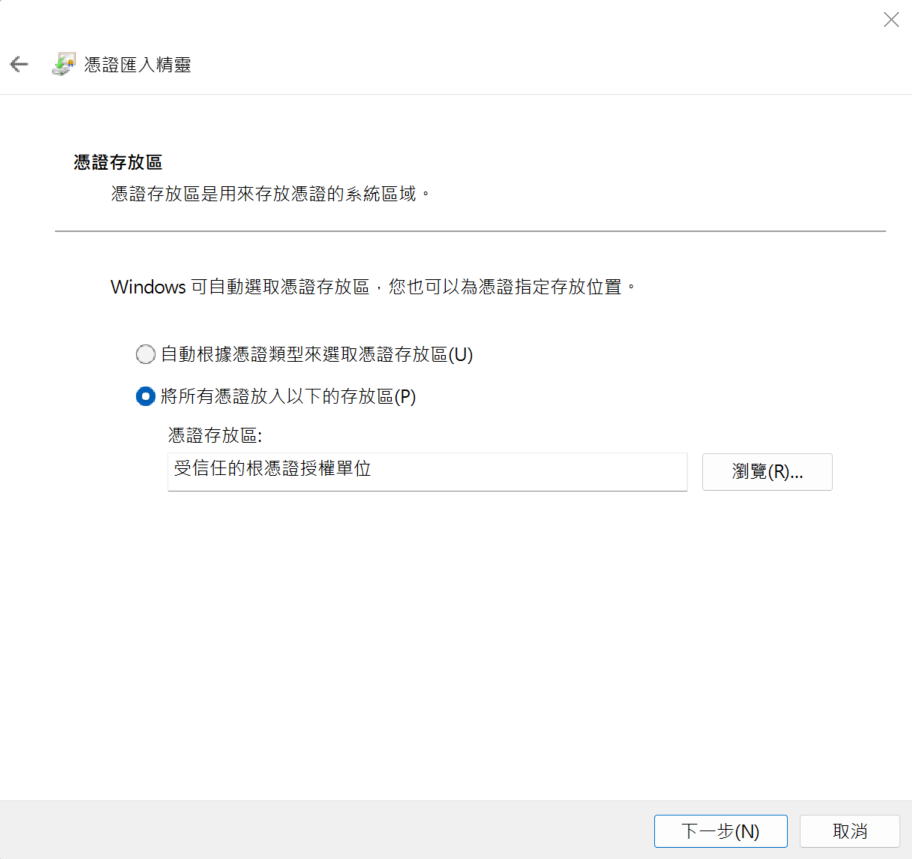
進入【受信任的根憑證授權單位】>【憑證】
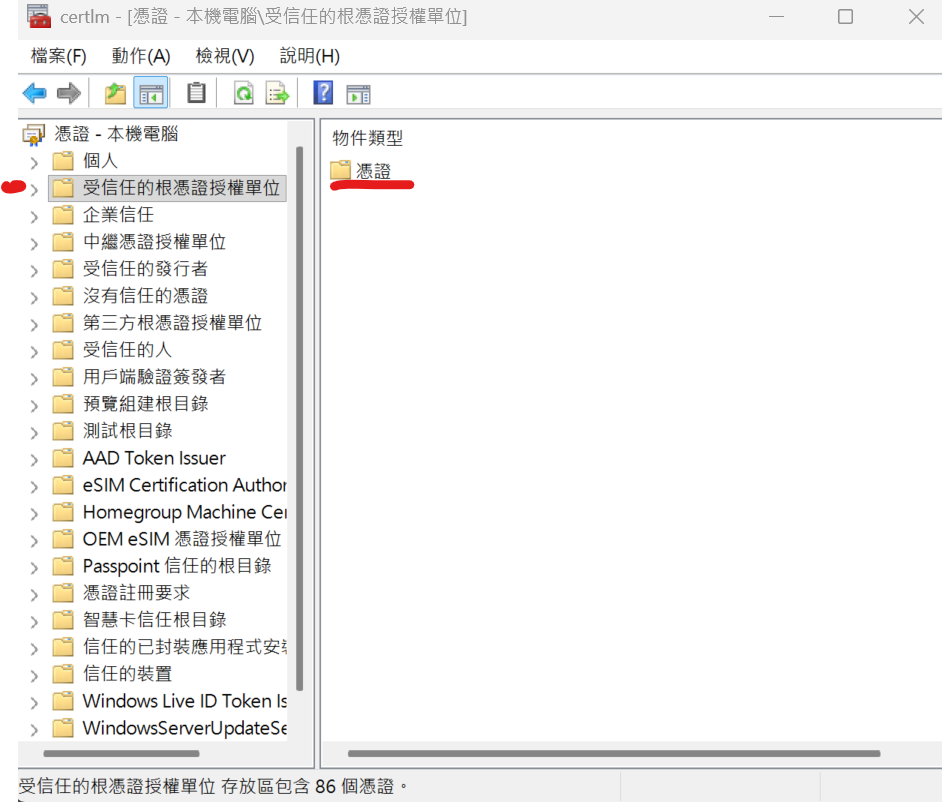
在空白處,右鍵【所有工作】>【匯入】
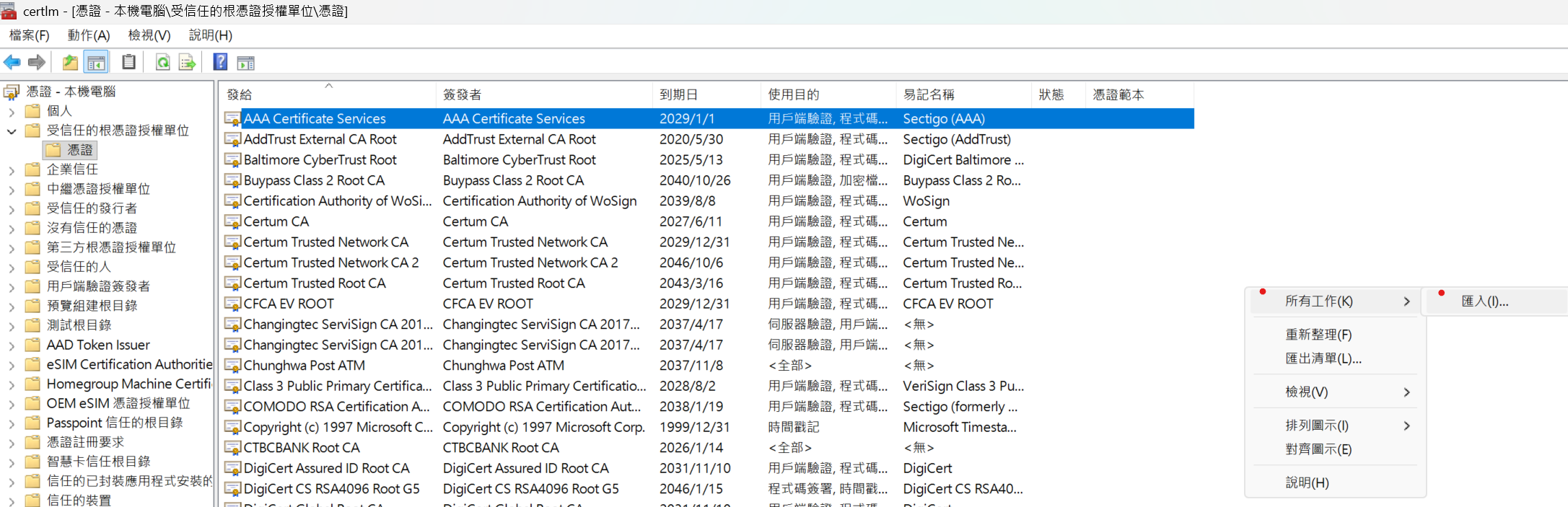
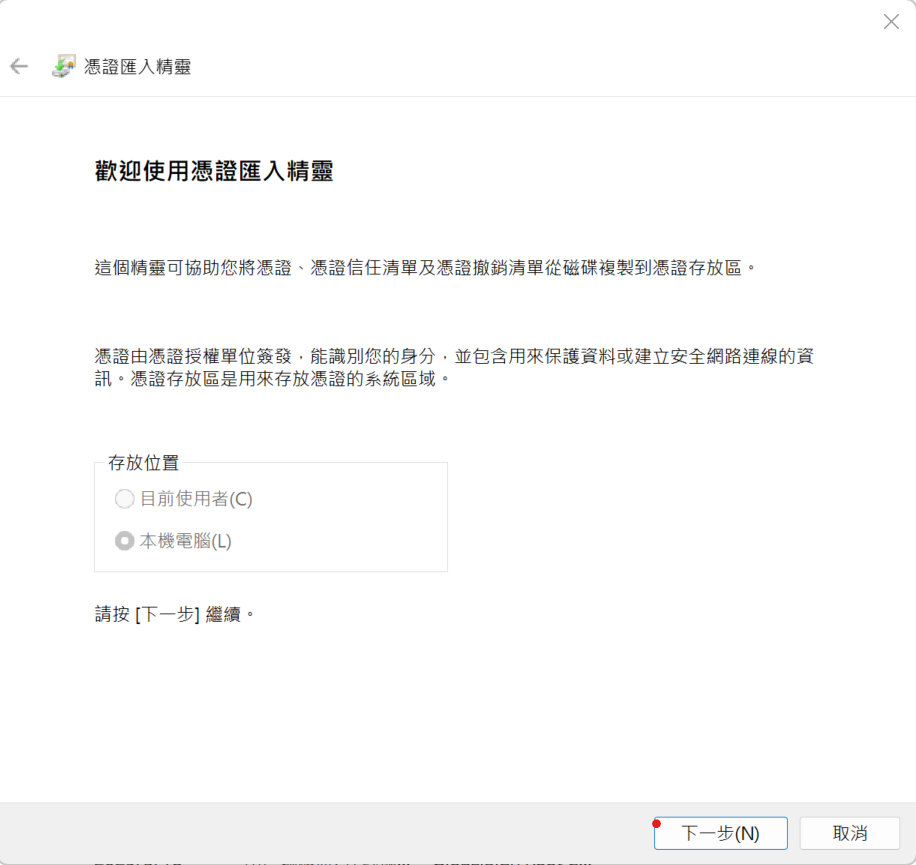
使用匯入憑證精靈
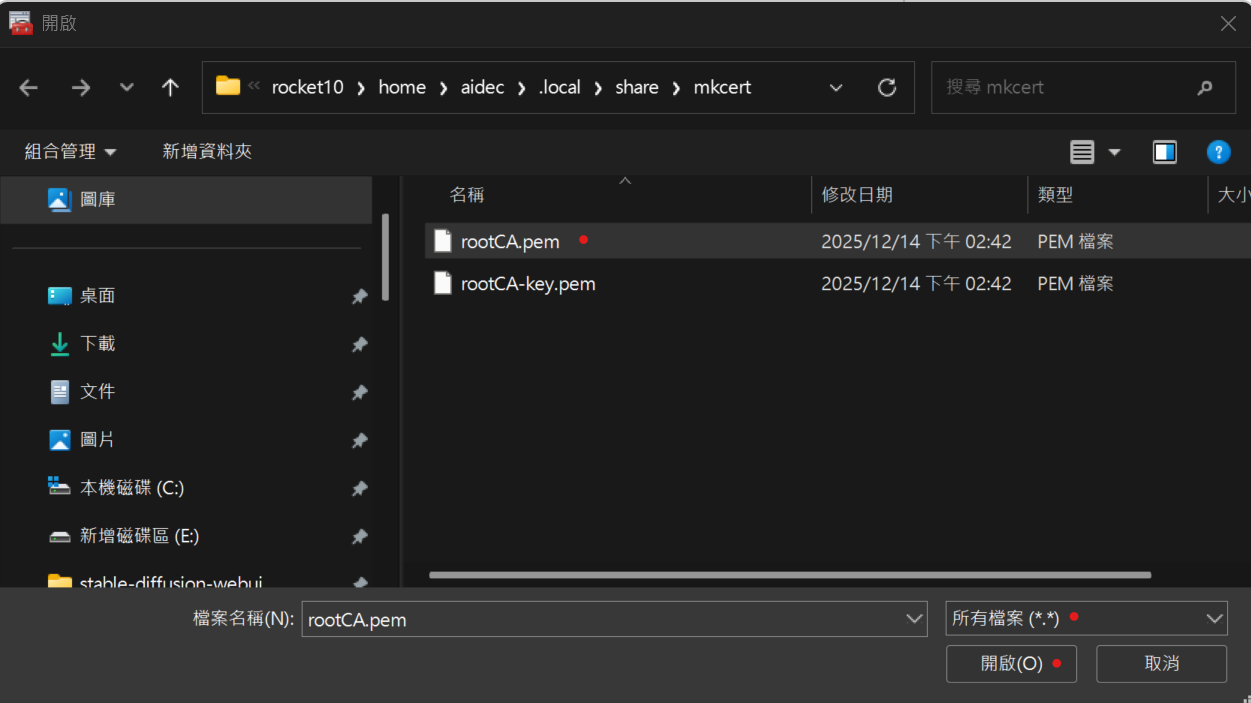
找到剛剛的rootCA.pem
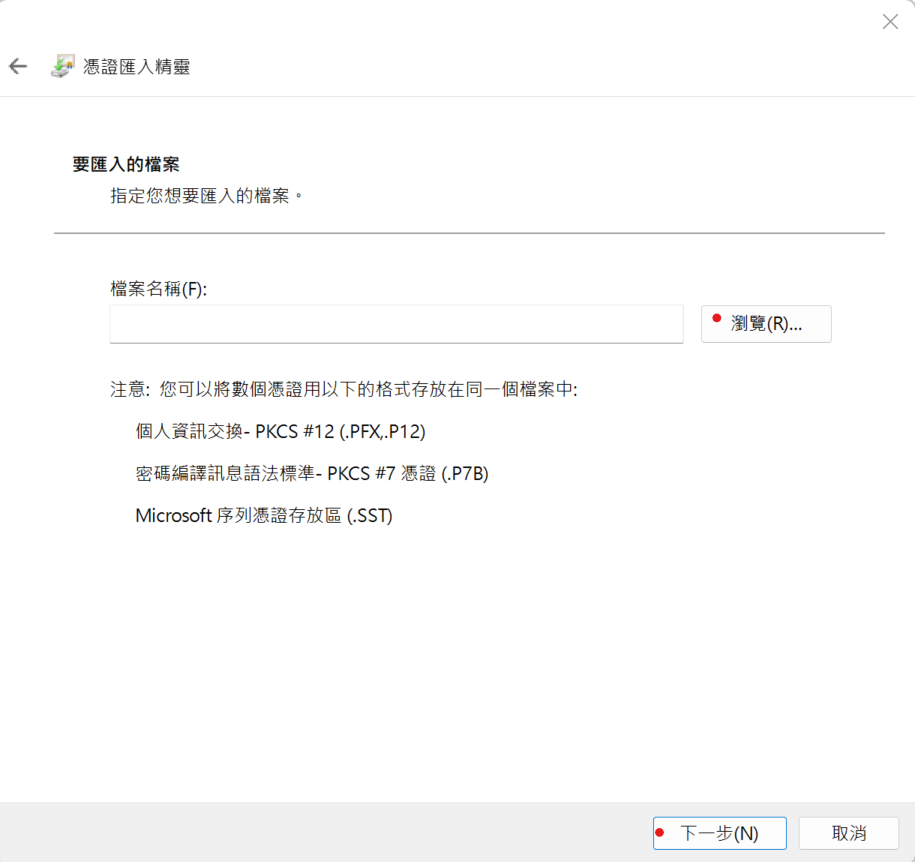
記得選所有檔案,這樣才會顯示rootCA.pem
按下一步
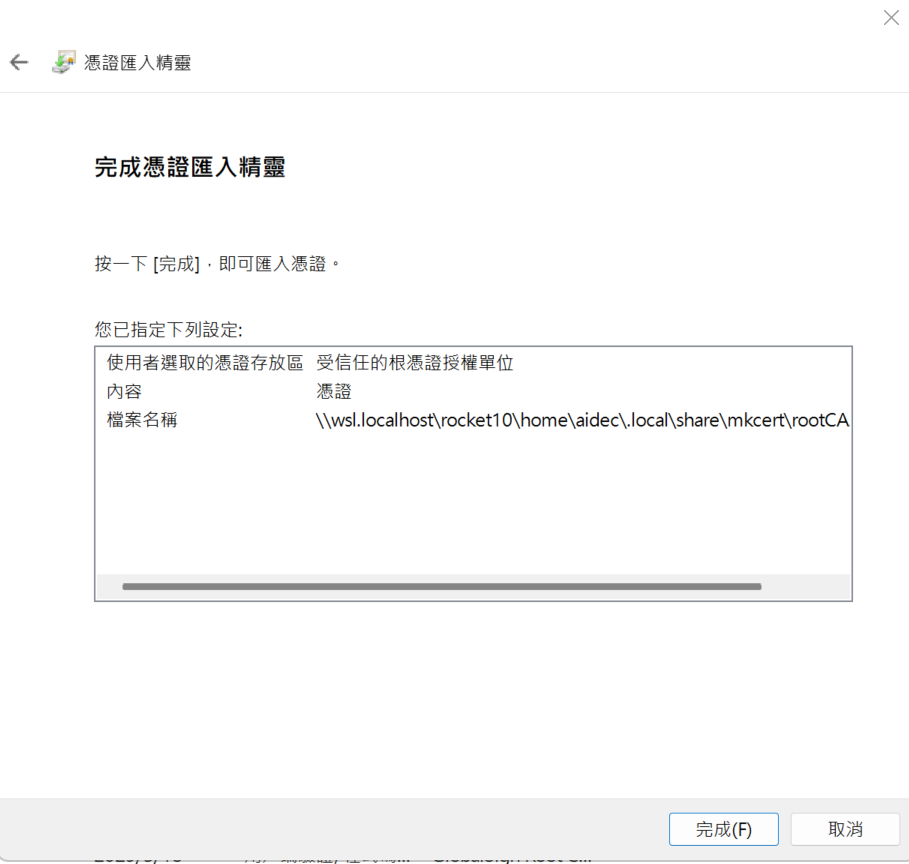
匯入完畢
簽發憑證
在WSL端,簽發 SSL 證書
1.建立一個目錄放置SSL證書
sudo mkdir -p /etc/nginx/ssl
2.進入一個有權限的目錄
cd /home/aidec/
3.生成證書(出現下圖表示成功)
mkcert hello-aidec.com

4.將證書移動到 /etc/nginx/ssl
sudo mv hello-aidec.com.pem /etc/nginx/ssl/
sudo mv hello-aidec.com-key.pem /etc/nginx/ssl/
5.設定權限(私鑰 key 其實設 600 或 640 更安全,但在開發環境 644 最不容易出錯)
sudo chmod 644 /etc/nginx/ssl/hello-aidec.com.pem
sudo chmod 644 /etc/nginx/ssl/hello-aidec.com-key.pem
6.nginx 的網域conf放置憑證
ssl_certificate /etc/nginx/ssl/hello-aidec.com.pem;
ssl_certificate_key /etc/nginx/ssl/hello-aidec.com-key.pem;
範例conf
server {
listen 80;
server_name hello-aidec.com;
return 301 https://$host$request_uri;
}
server {
listen 443 ssl;
server_name hello-aidec.com;
ssl_certificate /etc/nginx/ssl/hello-aidec.com.pem;
ssl_certificate_key /etc/nginx/ssl/hello-aidec.com-key.pem;
root /home/aidec/my_project; # 請確認這裡是你真實的路徑
index index.php index.html; # 把 index.php 放前面
location / {
try_files $uri $uri/ /index.php?$query_string;
}
# PHP 處理區塊
location ~ \.php$ {
try_files $uri =404;
# 對應剛才 www.conf 的設定
# 如果 www.conf 是 listen = /run/php-fpm/www.sock
fastcgi_pass unix:/run/php-fpm/www.sock;
# 如果 www.conf 是 listen = 127.0.0.1:9000
# fastcgi_pass 127.0.0.1:9000;
fastcgi_index index.php;
fastcgi_param SCRIPT_FILENAME $document_root$fastcgi_script_name;
include fastcgi_params;
}
}
重啟nginx
文章轉載或引用,請先告知並保留原文出處與連結!!(單純分享或非營利的只需保留原文出處,不用告知)
原文連結:
https://blog.aidec.tw/post/wsl-rocky-linux-local-https
若有業務合作需求,可寫信至: [email protected]
創業、網站經營相關內容未來將發布在 小易創業筆記